Apple Silicon monitoring

StillCore

Understand where your Mac’s power goes. Keep an eye on activity, find demanding processes, and track battery drain — right from your menu bar.

Apple Silicon · macOS 14+ · Free & open source

macOS 27 ready. If your old monitor stopped reporting power after the upgrade, StillCore can take its place.

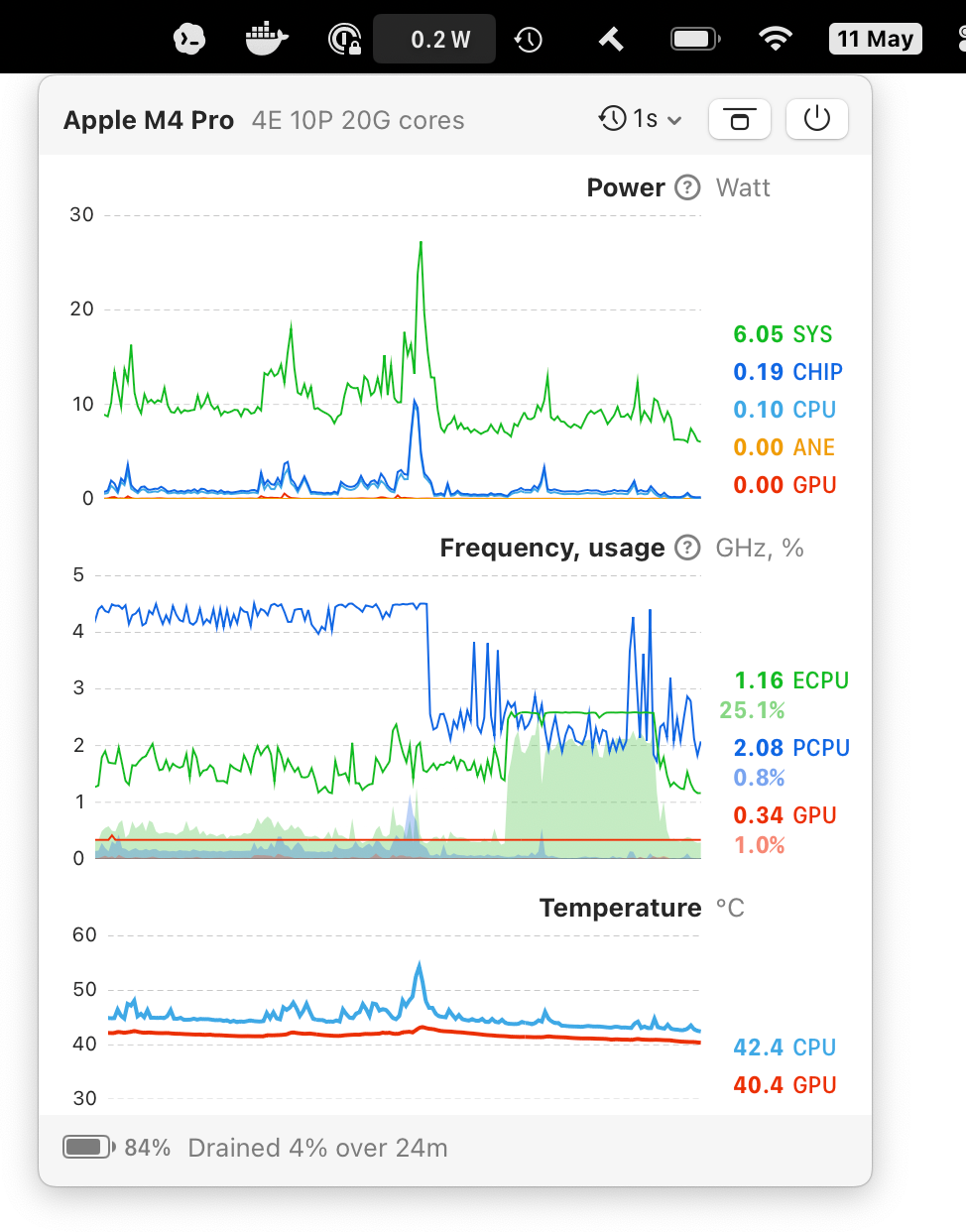
StillCore opened from the menu bar, showing power, activity, temperature, and top processes

Powerful hardware. A polished OS. What’s missing is a sense of control.
Why is your Mac warm? What’s draining the battery? Activity Monitor feels cumbersome when you just want a quick answer: by the time you open it and find your bearings, the spike may be gone. StillCore stays ready in your menu bar, so you can see what’s happening and decide what to do, whenever you need to.

See what’s behind the spike.

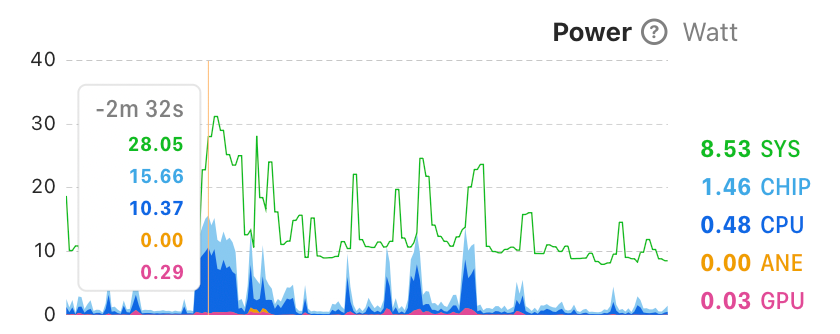
Compare total system power with chip power, then see the CPU, GPU, and Neural Engine contributions. Move the chart marker over a spike to inspect the readings.

Frequency, usage, and temperature charts give you the context to understand what your Mac is doing.

Power and activity charts with a marker inspecting a spike in consumption

Find the process. Choose what happens next.

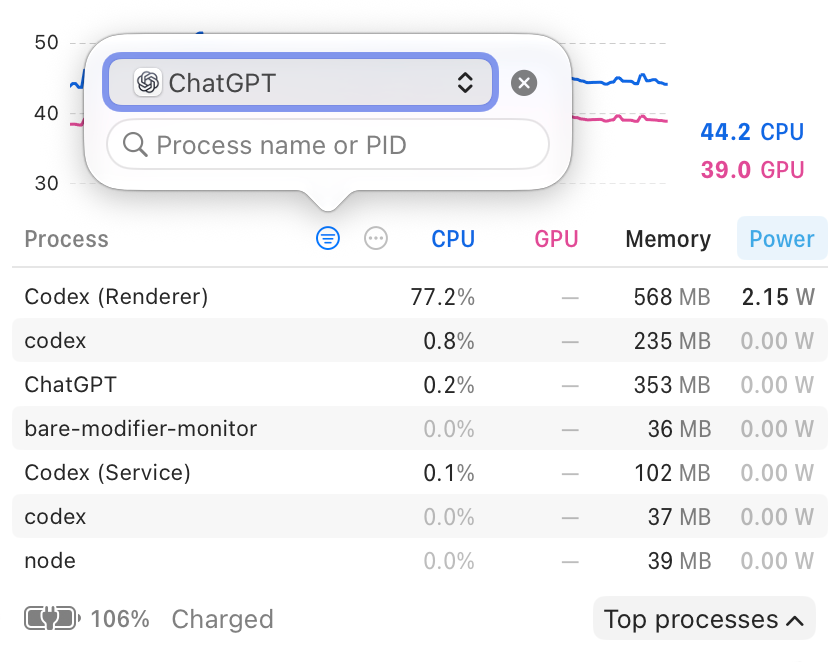
See which processes are using the most CPU, GPU, memory, or CPU power. Filter by application, process name, or PID to narrow the list.

Once you’ve found a demanding process, you can quit it or apply a background policy directly from StillCore.

Top Processes sorted by CPU power, with filtering and process controls

Make sense of every unplugged session.

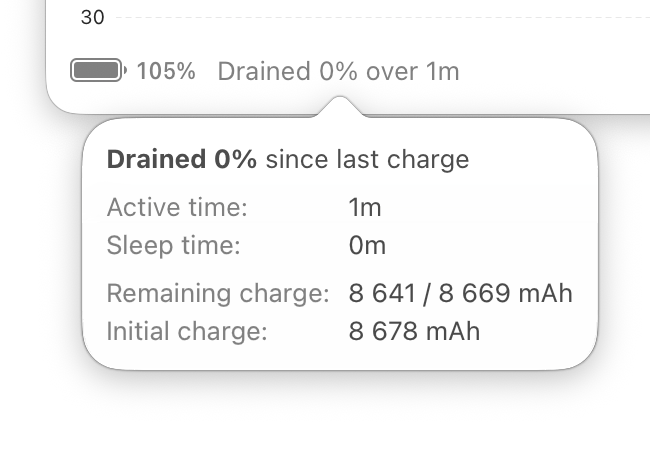
See how much charge remains and how much you’ve used since unplugging, with separate totals for the time your Mac spent awake and asleep.

Switch between Automatic and Power Save modes for your current power source as your priorities change.

Battery details showing charge, drain, and awake and sleep time since unplugging
macOS can report 100% below full capacity. StillCore can show charge above that threshold, so you can see it drop even while macOS still reads 100%.

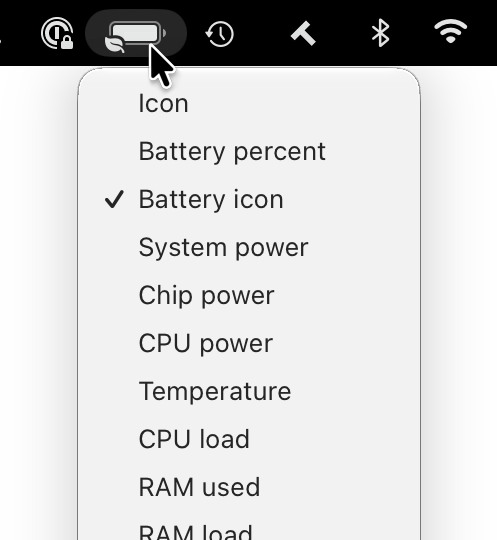
Choose the metrics you want at a glance, along with a battery icon or percentage. Open the charts when something catches your attention, or detach the window to keep them visible while you work.

Set the update interval from 100 ms to 10 seconds, whether you’re watching a brief burst of activity or keeping an eye on everyday use.

Built to stay on.

A monitor is most useful when it’s already running. StillCore is built for continuous, everyday monitoring with low overhead, so it’s always there when something suddenly feels off.

Chip power while StillCore is running
Mac idle, StillCore off0.17 W
StillCore in the menu bar1-second update interval0.17 W
StillCore window open1-second update interval0.21 W

Read about the tests in the README.

A practical reason to watch the watts.

A transatlantic flight lasts about ten hours. I use StillCore to see how much power Civilization VI draws and tune the game settings with one goal in mind: more time playing, less time looking for an outlet.

One of the everyday reasons I built StillCore. More stories behind the app →